
By integrating Campaign Monitor with Contactum, you can seamlessly send contact information from your WordPress site to your Campaign Monitor account each time a form is submitted.
This Article will show you how to set up the Campaign Monitor to Contactum integration on your WordPress website.
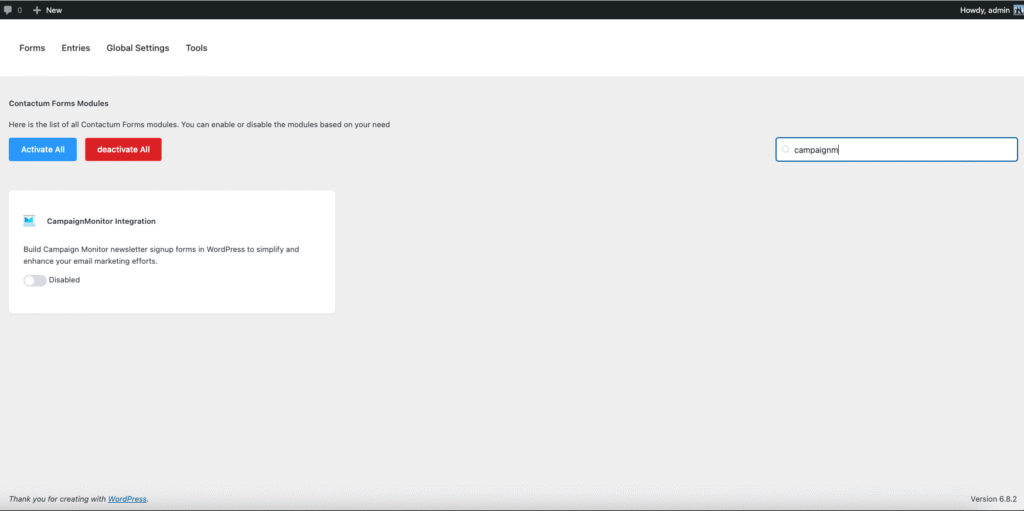
After enabling Campaign Monitor, you’ll be prompted to enter the API Key from your Campaign Monitor account.
Get Your Campaign Monitor API Key # #
To get the Campaign Monitor API Key, log in to your Campagin Monitor account, go to the top-right corner, and click Profile.
Click the Arrow icon to open the dropdown menu, and click the Account Settings button.
Now, click the API Keys option.
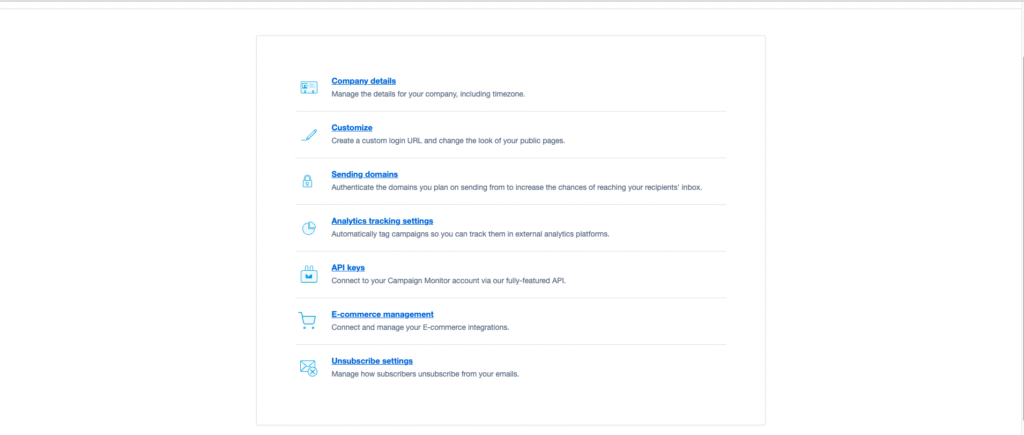
Then, click the Generate API Key button.
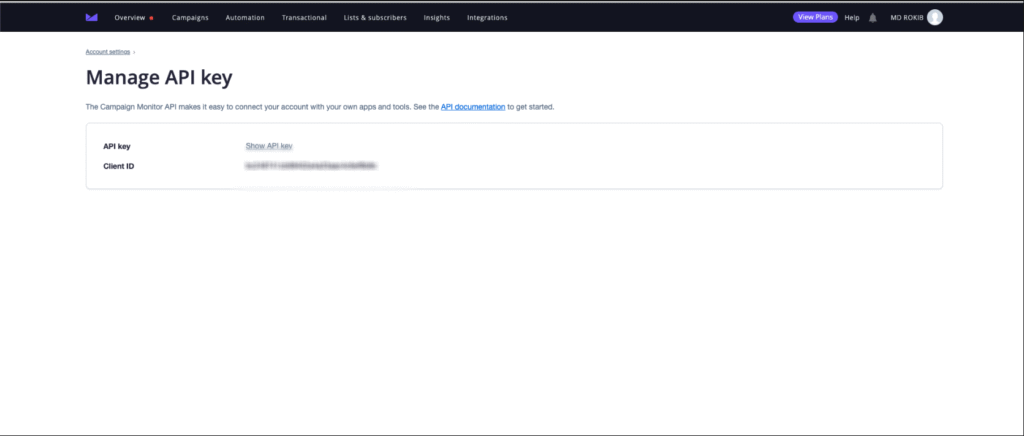
Finally, copy the generated API Key.
Connect Campaign Monitor with Contactum #
Go back to the Campaign Monitor Settings page under the Configure Integrations tab in the Settings section of the Contactum menu.
Paste the API Key you copied from Mailchimp into the Campaign Monitor API Key field, then click Save Settings to activate the Campaign Monitor integration.
Your Campaign Monitor account is now successfully connected to Contactum.
You can also verify the connection or disconnect it anytime by clicking the Verify Connection Again or Disconnect Campaign Monitor buttons.


