
Contactum supports integration with hCaptcha, a widely used independent CAPTCHA service. It helps block bot submissions while offering a modern, privacy-focused solution.
In this article, we will show you how to set up hCaptcha on your WordPress site using Contactum.
Configuring hCaptcha Integration # #
To set up the hCaptcha integration, follow the steps below
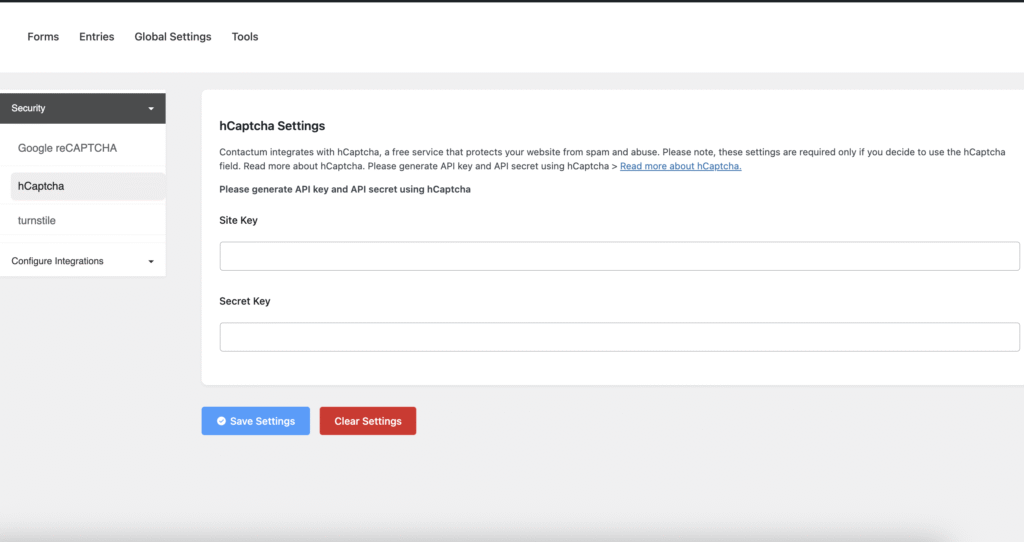
First, navigate to Settings from the Contactum menu, then open the Security tab on the left sidebar and select hCaptcha.
You’ll then be prompted to enter the Site Key and Secret Key from your hCaptcha account to complete the configuration.
Getting the hCaptcha Site and Secret Key # #
To obtain your hCaptcha Site Key and Secret Key, follow the steps below with screenshots –
First, log in to your hCaptcha account. If you don’t already have one, create a new account by signing up.

Click on Add hCaptcha to my website or app. This will redirect you to the login page, where you can sign in with your email address.
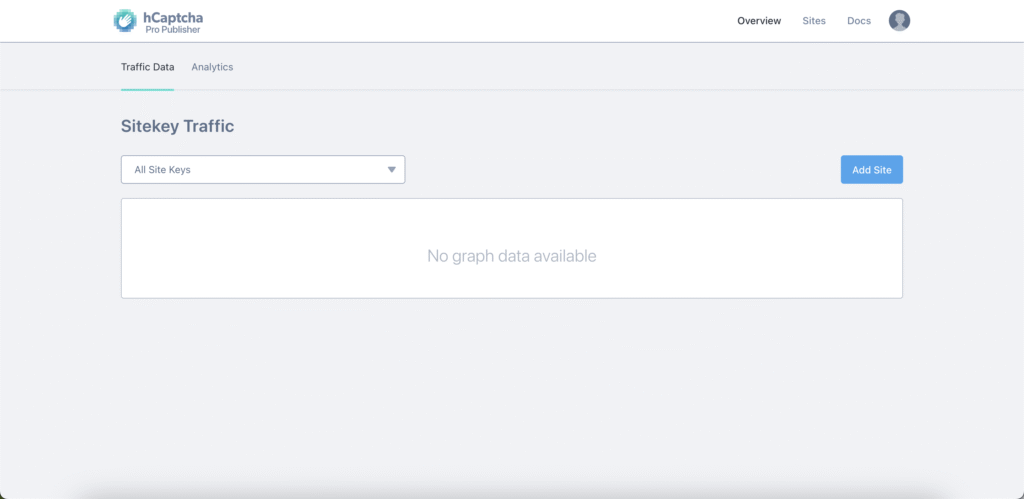

Once you log in to the account, click the Generate button to generate the Secret Key.
Now, copy the Secret Key and click the Continue button to get the Site Key.
Click Add Site to register the website where you wish to use hCaptcha.
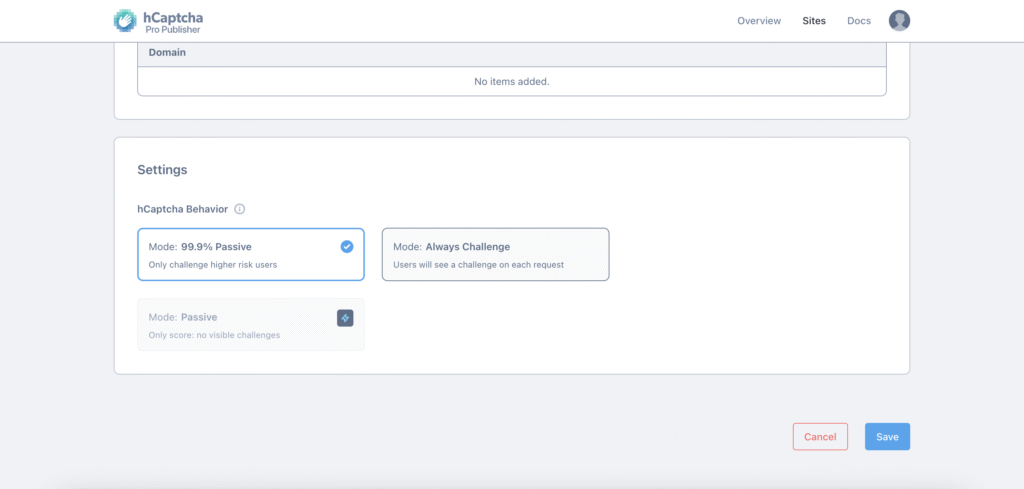
Give your website a Name for future reference, then add your site’s address in the Domains field to register it for hCaptcha verification.
You can also customize settings like hCaptcha Behavior and Passing Threshold as needed.
Finally, click Save to complete the setup and receive your Site Key.
Copy the Site Key by selecting the Copy option under your chosen site.
Connecting hCaptcha with Contactum #
Go back to Settings from the Contactum menu, open the Security tab on the left sidebar, and select hCaptcha.
Then, paste the Site Key and Secret Key you copied from hCaptcha into their respective fields.
Once you enter the keys, a pop-up will appear prompting you to verify their validity.
Finally, press the Save Settings button to make your hCaptcha Integration functional.


