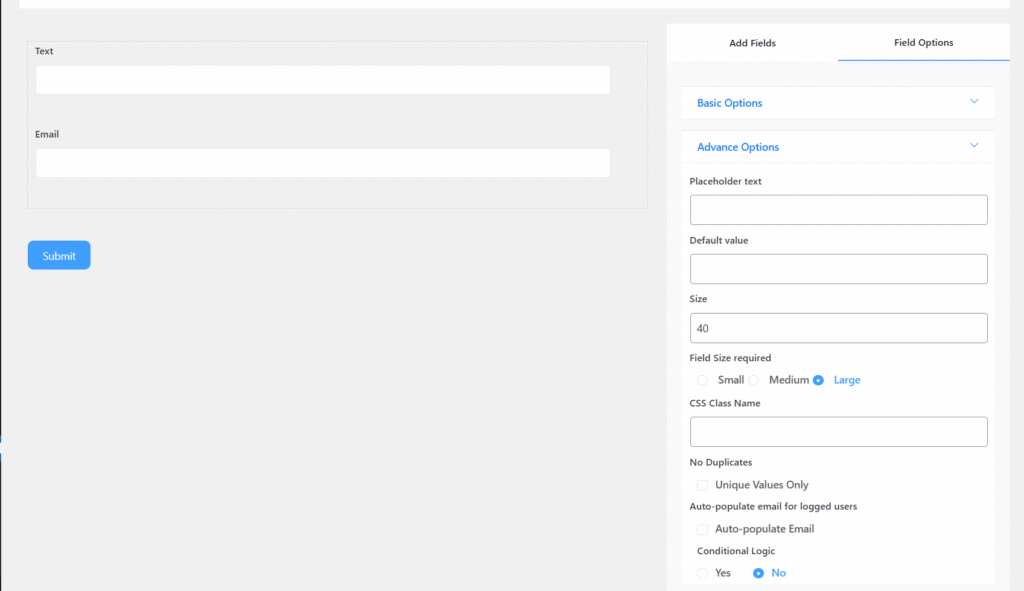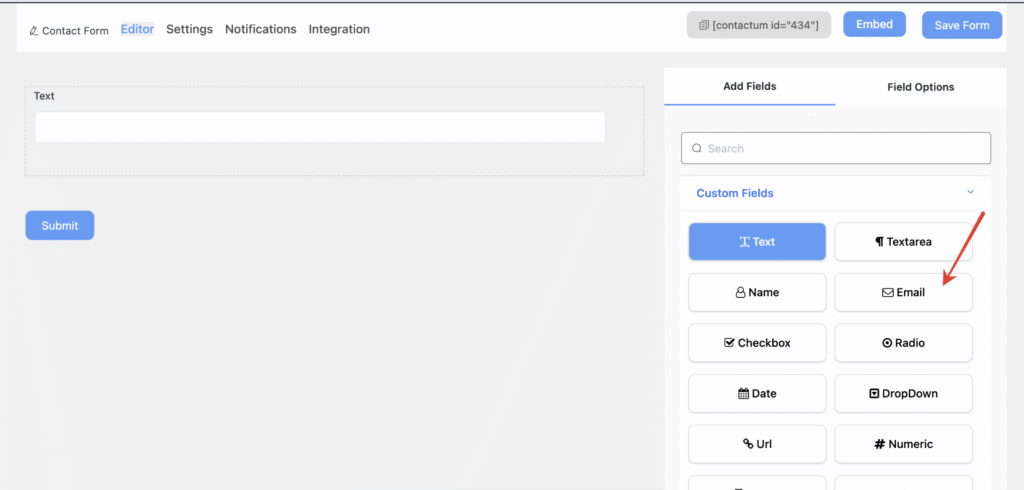
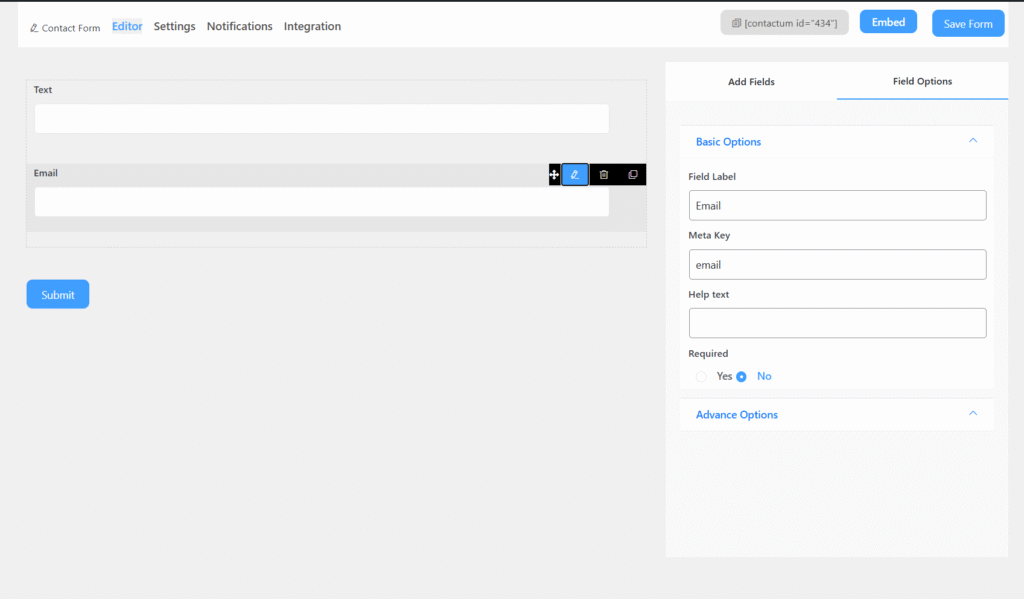
Email Field includes the following options:
- Field Label: Defines the purpose of the field.
- Meta Key: Automatically created when you edit the label, but it can still be modified manually.
- Help Text: Provides guidance on what the user should enter in the field.
- Required: Specifies whether the field is mandatory or optional. If enabled, an asterisk (*) will appear next to the field label.
Advanced Options
You can access the advanced options located just below the “Required” setting of the Email Field.
The advanced options include:
- Placeholder Text: Appears inside the field as a hint or example. It disappears once the user starts typing.
- Size: Adjusts the field’s dimensions by increasing or decreasing its unit size.
- CSS Class Name: Allows you to assign a custom CSS class for styling the field.
- Auto-Populate Name: When this option is enabled, logged-in users will not see the Name field while filling out and submitting the form.
- No Duplicates (Unique Values Only): Prevents multiple submissions from the same user on a single form. Enabling this option ensures each entry is unique.
- Auto Populate: When enabled, logged-in users won’t see the Email field while completing the form—their account email address will automatically be used.