
Connecting GetResponse with Contactum allows you to automatically transfer contact information from your WordPress site to your GetResponse account whenever a form is submitted.
This guide will walk you through the process of integrating GetResponse with Contactum on your WordPress website.
Enable GetResponse Integration #
After enabling Mailchimp, you’ll be prompted to enter the API Key from your Mailchimp account.After enabling Mailchimp, you’ll be prompted to enter the API Key from your Mailchimp account.
Get Your GetResponse API Key # #
To find your GetResponse API Key, follow the step-by-step instructions below:
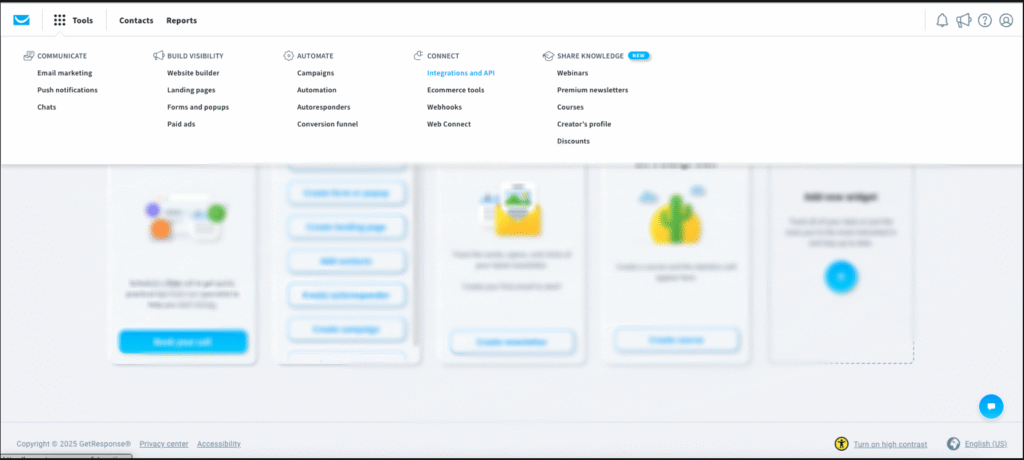
First, log in to your GetResponse account. Then, click on the Tools icon in the top-left corner and select Integrations & API.
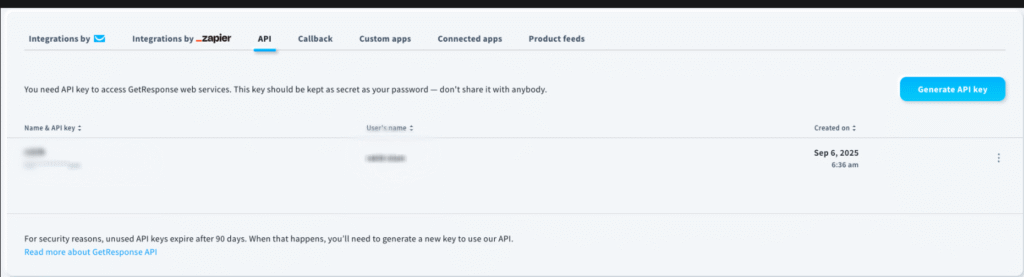
Now, go to the API tab and click the Generate API key button
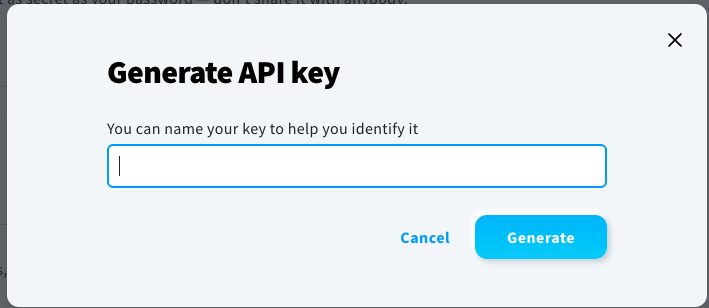
Provide a Name for your API key and click the Generate button.
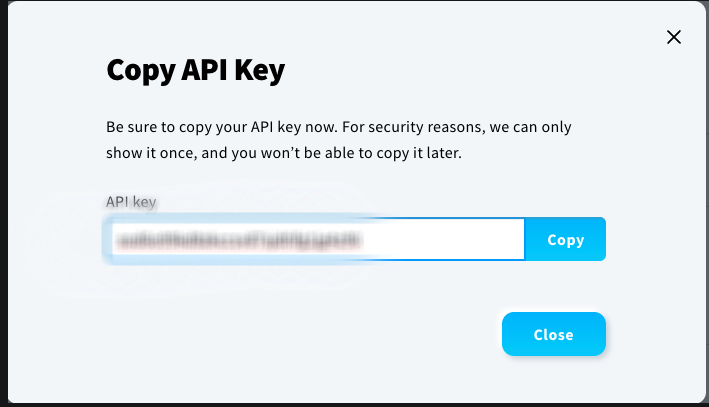
Finally, your GetResponse API key is created, copy it by clicking the Copy button.
Connect GetResponse with Contactum #
Go back to the GetResponse Settings page under the Configure Integrations tab in the Settings section of the Contactum menu.
Paste the API Key you copied from GetResponse into the GetResponse API Key field, then click Save Settings to activate the GetResponse integration.
Your GetResponse account is now successfully connected to Contactum.
You can also verify the connection or disconnect it anytime by clicking the Verify Connection Again or Disconnect GetResponse buttons.


