
Table of Contents

MailerLite Integration #
Automatically add form submitters to a MailerLite group when they submit a Contactum form.
Requirements #
- Contactum Pro
- An active MailerLite account
- A MailerLite API token with read/write access
Get Your MailerLite API Key #
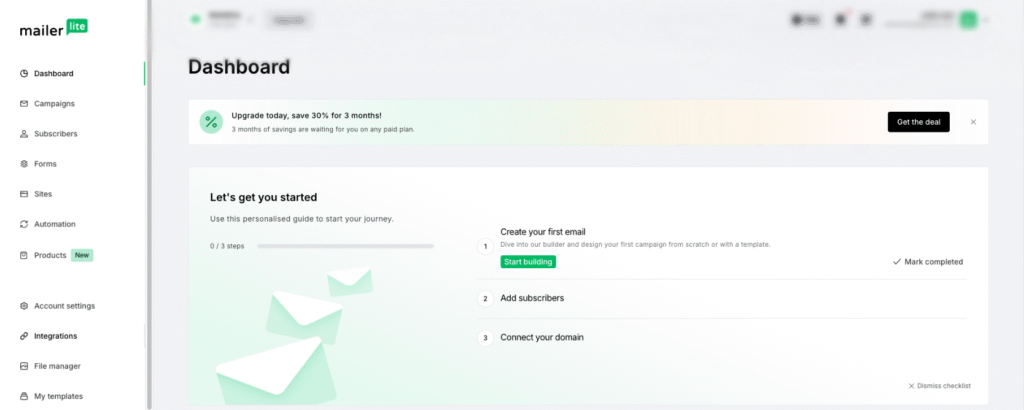
- Log in to MailerLite
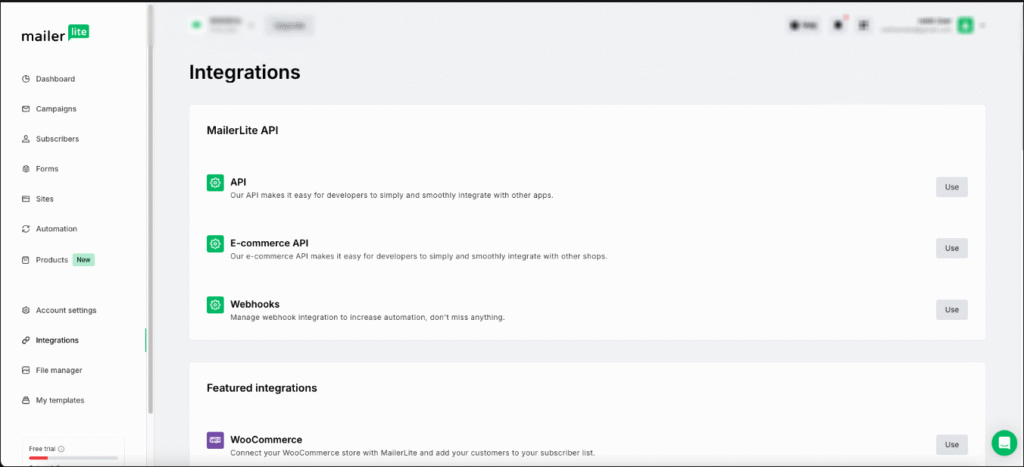
- Go to Integrations → API
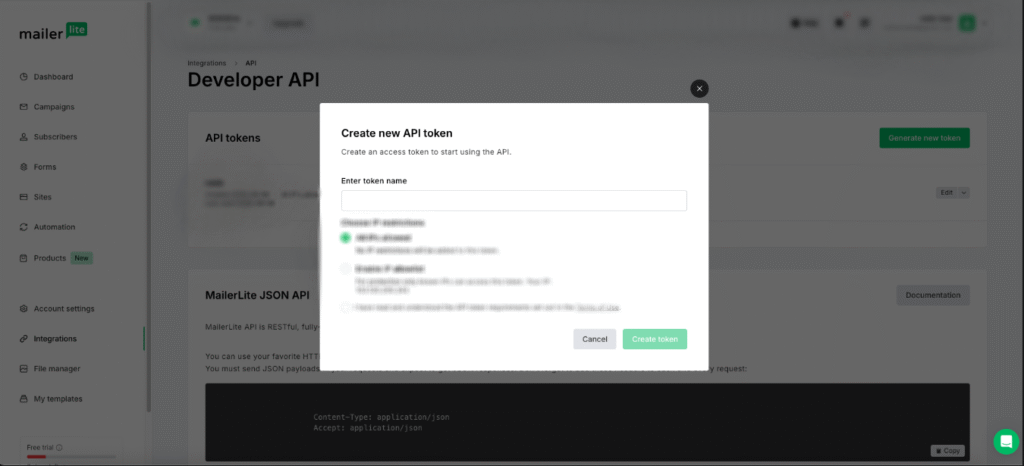
- Generate a new token
- Enable Read and Write permissions
- Copy the API token
Keep your API token private. Anyone with the token can manage your subscribers.
Connect MailerLite in Contactum #
- Go to Contactum → Settings → Integrations → MailerLite
- Paste your API key
- Click Save Settings
If the API key is valid, Contactum will display a successful connection message.
Enable MailerLite on a Form #
- Open the Contactum form builder
- Go to Form Settings → Integrations
- Enable MailerLite
- Click Configure
Configure Field Mapping #
| Field | Required | Description |
|---|---|---|
| Group | Yes | Select the MailerLite group |
| Yes | Map the email field from the form | |
| First Name | No | Map subscriber first name |
| Last Name | No | Map subscriber last name |
Using Smart Tags #
Example merge tags:
Email      → {email}
First Name → {first_name}
Last Name  → {last_name}
How Subscriptions Work #
- The visitor submits the form
- Contactum processes the entry
- The integration validates the API key and configuration
- The subscriber is added to the selected MailerLite group
Example API Payload #
{
  "email": "subscriber@example.com",
  "fields": {
    "name": "Jane",
    "last_name": "Doe"
  },
  "groups": [
    { "id": "group_id" }
  ]
}
Subscriber Behaviour #
| Scenario | Result |
|---|---|
| New email address | Subscriber created and added to group |
| Existing email | Subscriber updated |
| Different group | Subscriber added to additional group |
| Empty email | Subscription skipped |
Troubleshooting #
API Key Not Validating #
- Use the new MailerLite API
- Confirm the token is active
- Check for extra spaces in the token
Group Dropdown Empty #
- Refresh the groups list
- Ensure groups exist in MailerLite
- Save and verify the API key first
Subscribers Not Appearing #
- Enable MailerLite on the form
- Select a group
- Map the Email field correctly
- Check Contactum entries
- Review wp-content/debug.log
Important Notes #
- Only one MailerLite group can be selected per form
- The integration uses MailerLite API v3
- API credentials are stored in WordPress options


